• Skip to main content
  • Skip to primary sidebar
  • Skip to footer

  • Home
  • About
  • Gallery
  • Classes
  • Trips
  • Books
  • Blog
  • Contact
  • Sign Up For My Blog

Blog

A Time Saving Machine

May 23, 2021 7 Comments

Last week Joanne commented that she wanted to know more about my Brother Scan ‘n Cut™. I’m actually using it on a current project and it is such a time and “hand” saver. Let me start at the beginning 😊.

A few years ago you might remember I made a quilt entitled “How Beautiful – Liberty”. It was one of my accordian door quilts, so it was made as 3 quilts: 2 were cut into vertical slices and sewn back together alternately, and the third was the base for the others to hang from. When viewed from the front the center portion is a bit confusing:

But by simply moving a few feet to the left you can see the New York Beauty quilt,

and viewed from the right the true New York Beauty appears!

While making the base quilt I wanted to include the first sentence in the Declaration of Independence, but how to make those tiny letters??? My husband suggested there must be a device that would save me from all that intricate and laborious cutting. So I called my friend Wendy at Sew Much More and she recommended the Scan ‘n Cut™. I did a post on how well it made the letters back in 2015 and you can click here to read all about it.

Since then I’ve used the Scan ‘n Cut™ for a variety of projects with great results. Many letters and shapes are loaded in the machine’s memory, so many projects can be created on the screen. Plus Brother™ has a site on the web called “Canvas” in which many, many more projects and alphabets can be found.

I made the words for my postcards featured in last week’s post with an alphabet in the Scan ‘n Cut™.

This week I began a new project in which I wanted to make 6 identical moths in fabric. I found a photo I liked

and traced the 3 different colored areas onto the paper side of fusible web. I ironed them to the appropriate fabric, cut them out by hand, and fused them all together. It worked, but my hand ached. That’s when I remembered the scanning feature on my Scan ‘n Cut™. I traced those 3 shapes again, onto paper this time, and placed it on the sticky area of the Scan ‘n Cut™ mat.

I loaded it into the machine, but this time I used the scanning feature to save my image in the Scan ‘n Cut™ memory. I was able to crop out the empty moth body shape in my scan and duplicate it 5 times on the screen to create my first “project”. I ironed the fusible web to the back of the black fabric, put it on the sticky mat, and chose the cutting feature this time to cut out 5 identical black moth bodies.

I was thrilled. I left the paper from the fusible web on the back of these shapes and went back to my original scan to crop out the shape to be cut from the dark blue fabric. I made a new project screen with 5 of those shapes. They were rather intricate and this time I was not thrilled 😟. The machine didn’t cut the tiny areas well at all and everything bunched up, and there were many areas that didn’t even cut through (sorry, I was frustrated and didn’t think to snap a photo).

It was then I had a lightbulb moment. I’ve been using this machine for over 5 years and never changed the blade. The size of the blade and the way it works is mind-boggling to me. This is what you see of it in the holder (it’s so tiny I had a difficult time getting a clear shot):

I decided to watch a few videos about it before purchasing a new blade and realized the whole area needed regular cleaning (duh). I took the unit apart and it was full of lint. I cleaned out the case with a dry cotton swab:

and used it to wipe off the blade also:

Once it was back together it cut the dark blue pieces perfectly! I fused them onto the black moth bodies.

The light blue portion of the wings was just as intricate – and the machine did a wonderful job! The background cutaway on the right is just laying on the mat loosely after I pulled it away from the wing pieces (please ignore the black lines on the mat – they were an oops from a previous project):

After fusing these final pieces in place

I was very pleased!

And so happy I didn’t have to cut it all out by hand. My hands don’t do the intricate cutting as well as they used to, so this machine is a real blessing to me!

The additional detail on the moths will be stitched in. These moths will be part of a new challenge quilt I’m making. Stay tuned to see what comes of them!

Scarecrow Faces

November 27, 2016 3 Comments

Important information about our upcoming cruise

Our Sew We Go cruise from Quebec to Boston in September of 2017 is going to be norwegian-dawnspectacular! And we still have a few cabins left. Because this is such a popular cruise, most cabins not spoken for by December 26 will be released back to Norwegian Cruise Lines. So, if you’ve been contemplating joining in on the fun, we need to hear from you soon. This could be a wonderful addition to your Christmas “wish list”. For all the details go to: https://www.chrisquilts.net/trips/, or to open a printable pdf click here!”

***And now for my topic of the week***

While teaching in Nebraska last year, I found a pattern for a table runner I just had to have.

topsy-turvy-scarecrow-pattern
To order your own pattern go to: Happy Hollow Designs!

I usually like to design my own projects, but these scarecrows were just too cute, and I promised myself I would make it this year! I pulled it out in the beginning of September only to realize I didn’t really feel like tracing/cutting out all those little pieces. Inspiration struck when I thought about scanning the pattern into my Brother Scan ‘n Cut™, and letting this wonderful machine do the tedious work. It was a great project for me to learn more about what my Scan ‘n Cut™ can do (to read my previous Scan ‘n Cut™ post click here).

Once the pieces were all fused and cut out, Sommer helped me to “build” the scarecrows. She was disappointed when I ironed them down

scarecrows-faceless

and machine blanket stitched around them,

scarecrows-stitching

because she couldn’t keep playing with them. So she offered to draw the faces. I stalled until mommy came to pick her up. That night I told Mike about it and he said I should let her. Duh!

The next day I had her draw some faces on paper first. We talked about different expressions, and shapes for eyes and mouths. I was amazed at how confident she was. Then I handed her a washout marker (grandma loves her, but she’s not crazy 😀 !) and stepped back. Without hesitation she drew every face: boom! boom! boom! She was done and never even needed to turn the piece around to draw the upside down scarecrows!!!


scarecrow faces scarecrow-faces-detail2

And here’s the finished runner:

scarecrow faces

I love them! I traced over Sommer’s lines with permanent marker. I think it’s my favorite table runner ever.

Word Patterns

June 23, 2013 Leave a Comment

A few months ago I got a new computer and thus I needed to adjust to a new version of MS Word. In my second book, “Snuggle and Learn Quilts for Kids”, I use Word to create my word patterns. These patterns need to be a mirror image of the word so that they can be stitched using my RepliquĂŠ technique (which reverses the pattern). I know many of you have this book or have seen my demonstration on how to make these patterns. Here’s the problem: MS Word no longer allows us to type a word in Word Art and then stretch it to fit the page, nor can we use “flip horizontal” to reverse the image. Grrrrrrr.

So I decided I needed to try to find an alternative – and I have :-)! If you have my book, please copy and paste these new directions into a blank document, print them and place them in your book for future use.

To Create a Word Pattern:

1. In the Layout menu select “Orientation” and check “Landscape”.layout,orient,landscape

2. In the “Document Elements” menu select “Word Art” (the tipped “A”); select the simple outlined letter (mine is in the upper left).

wordart

Your Text Here

A Text Box should appear. Type the word or name you want in the box. If you attempt to type and it doesn’t work, highlight “Your Text Here” first and then retype the word.

3. Make sure your Name/Word is still highlighted and select “Effects” (the fuzzy “A”); select Warp square“Transform” and under the “Warp” menu cursor over the different options and click on the one that reads “square”.

4.  You may now stretch (warp) your word by “left clicking and holding down” the “handle” on the lower right corner of the text box then dragging it to the desired size for your pattern.

stretched word

To Reverse the Image:

1. Highlight the Name/Word once again (it may shrink back to it’s original size, don’t worry – just proceed).

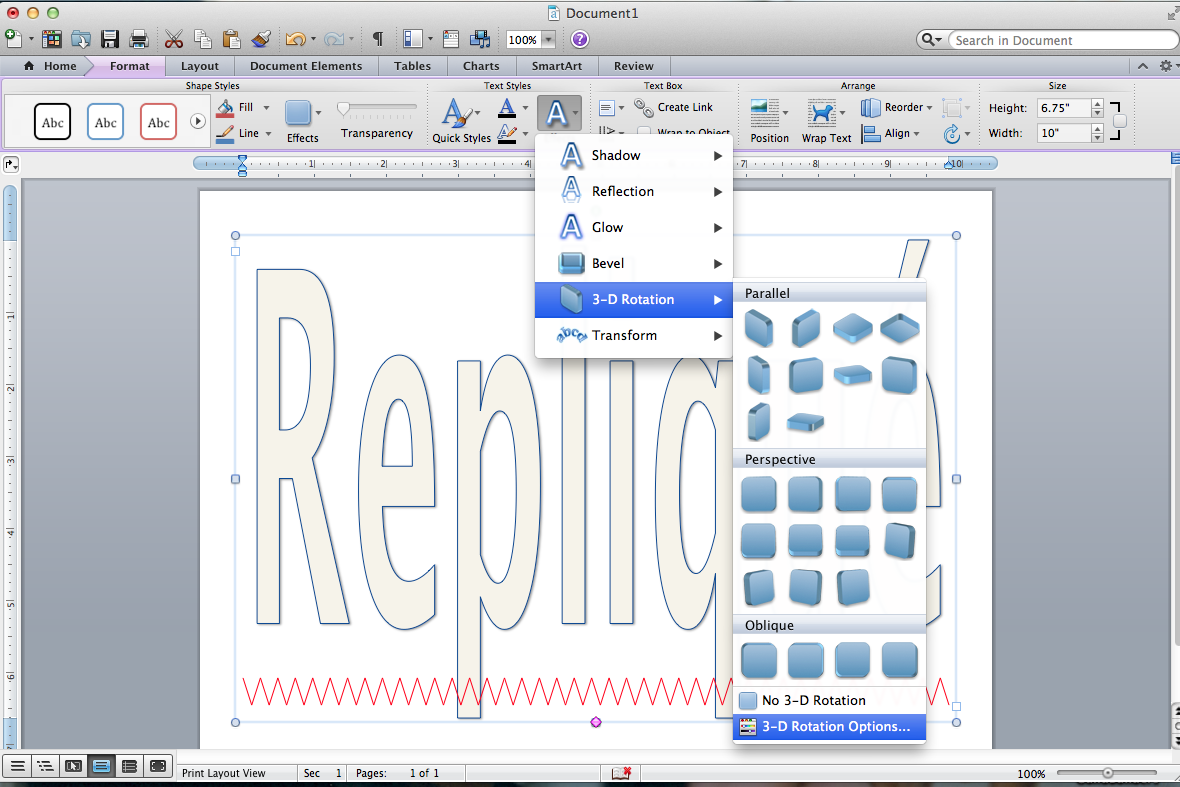
2. Select “Effects” once again; select “3-D Rotation”; select “3-D Rotation Options” at the bottom of the menu box.

3d rotation options

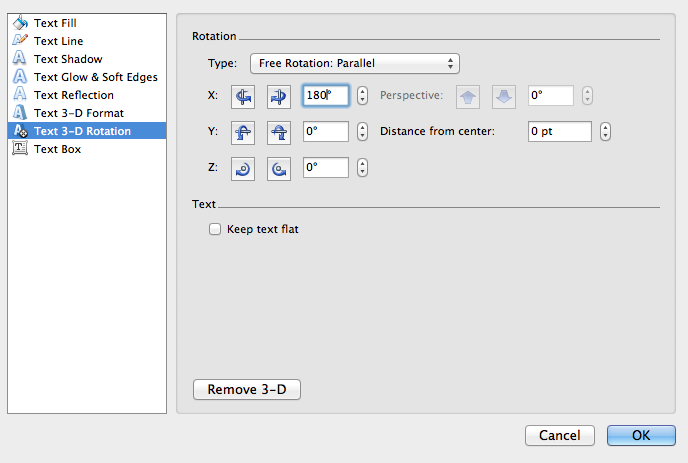
3. In the new menu type “180” in the “X” box and click “ok”.

180

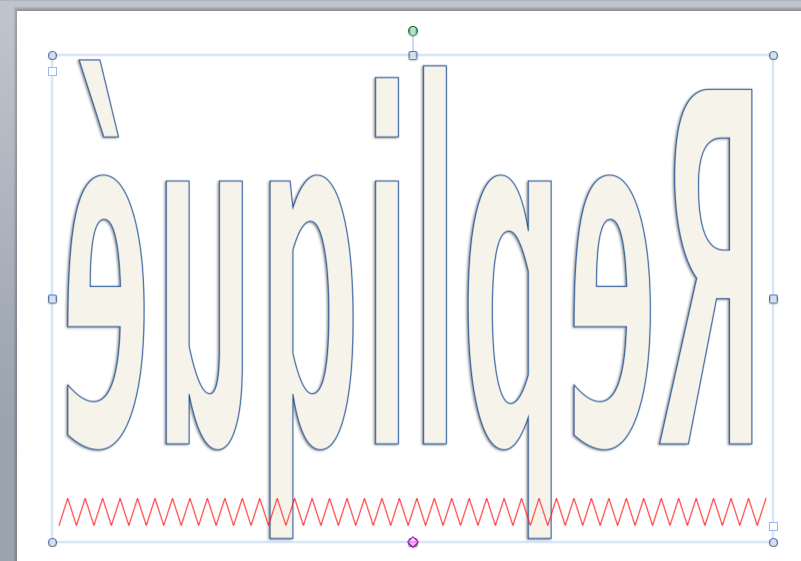
Your Name/Word should now be the desired size, reversed and ready to print!

ready to print

I hope this was helpful. These patterns may also be used for fusible web appliquĂŠ, but I would recommend RepliquĂŠ :-)!

Upcoming Classes

I have a few one day workshops open this Summer. If you are available I hope you’ll consider signing up.

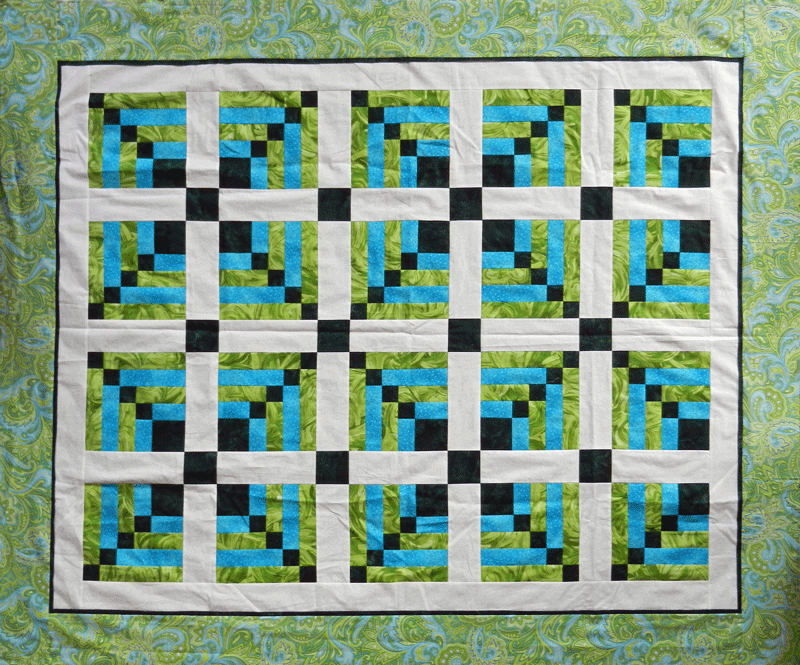
Logs and Chains – Friday, 8/9, 9-2:30

logs and chains

Click here for all the information: http://www.wctc.edu/class-search/course-search-results3.php?code=304&num=617F&term=201405&credit=any&item=QUILTING&by=&delivery=any&session=any&coursenum=&itematch=&restriction=&avail=all&prereqs=any&startdate=all&where=class_search

Compass Capers – Friday, 7/12, 9-2:30

Mariner's Compass

Click here for all the information: http://www.wctc.edu/class-search/course-search-results3.php?code=304&num=608U&term=201405&credit=any&item=QUILTING&by=&delivery=any&session=any&coursenum=&itematch=&restriction=&avail=all&prereqs=any&startdate=all&where=class_search

A New Look For My Blog & a Quick Miter Tutorial

May 6, 2012 4 Comments

Welcome to my new blog look!

Diahann Lohr, of Adunate Word and Design, inspired me to create my blog over a year ago. I then hired her to design my website, now she has integrated the two. I’m thrilled and I hope you enjoy the change!

The address for my new blog is: www.chrisquilts.net/blog. It’s shorter and simpler than my previous blog address, and the good news is that if you usually access my site by clicking on the link in my emails, you can continue to get here the same way. Please feel free to offer feedback by clicking on the word “comment” at the end of this post.

This week’s topic is about my favorite way to miter a border. Once you have sewn on the border strips, stopping both seams 1/4″ away from the corner to be mitered, it’s as easy as:

1. Fold diagonally through the quilt while aligning the border strips on t0p of each other (right sides together), and lay a ruler along the fold with the 45° line along the stitching.

2. Draw along the edge of the ruler on the border strip, remove the ruler and pin.

3. Sew on the line!

I’ve been doing a bit of mitering lately because I was designing a new Attic Window project for a Summer class at WCTC in Waukesha.

The Big Picture

May 23, 2011 7 Comments

 Thanks for the positive response to my method for creating a Celtic quilting design. If my ideas inspire you to create a design of your own, please send me pictures. One of the comments mentioned using green thread. Actually – I did, the picture just didn’t show it. Here’s a new one:

And a view of the entire quilt (please ignore the binding clips :-):

Now for something completely different :-). This week’s topic concerns making pictures or patterns larger and then printing them easily. I often need to do this. For example, when recreating a picture in appliquĂŠ using my RepliquĂŠ technique, an enlargement of a photograph is needed to make the pattern. Another instance where this is necessary is when I draft Mariner’s Compass patterns using my paper folding techniques. Sometimes I draft them the size of a sheet of paper and then need to make them bigger (for descriptions of both of these techniques, scroll down to the Architectural RepliquĂŠ and Mariner’s Compass Simplified descriptions on my website at https://www.chrisquilts.net/lectures_and_workshops.htm). You can probably think of instances in your quilt life when this would be helpful too.

In the past I’ve enlarged pictures at my local print shop; and I’ve made patterns bigger with the help of an overhead projector. Since the enlargements cost money and the overhead has to be used while I’m at work, neither is a particularly convenient option.

A while back I read an article in The Quilt Life magazine which recommended doing these enlargements using Microsoft Excel, along with a home computer and printer. It really works, so I just have to share! Here’s the step by steps:

1.  Open Microsoft Excel

2.  In the File Menu select Page Set Up; select Margins; set footer and header to “O” and set the margins to .5 on all 4 sides; select “OK”

3.  In the View Menu select Zoom; change the magnification to 25%; select “OK”

4.  In the Insert Menu select Picture; select From File and then find the drawing or picture you want to enlarge from your computer, click on it and then select Insert

5.  Your picture/drawing will now be in the upper left corner of the Excel document. Click on it and then place your cursor on the bottom right corner square; click and drag your picture/drawing to the desired size. Each rectangle in the Excel program represents an 8 1/2″ x 11″ sheet of paper and when you press “print” it does …… and all the sheets fit together!

If you’re printing a photo onto printer fabric, the margins we left will provide enough space around each portion for seam allowance.

If you’re printing a drawing or pattern, the margins can be overlapped when the parts are taped together.

I hope this is helpful. If it seemed a bit confusing, open Excel and give it a whirl. You may be pleasantly surprised at how easy it is!

Primary Sidebar

Archives

Recent Posts

  • London ~ and More
  • Designed For a Purpose
  • Squirrel Quilts and More
  • Vintage AppliquĂŠd Arrows and More
  • Fascinating Tidbits

Recent Comments

  • Karen Ann Moore on London ~ and More
  • Cheryl McLean on London ~ and More
  • Sue Halpern on London ~ and More
  • judy raddatz on London ~ and More
  • Joanne Corrigan on London ~ and More

Categories

Footer

My Guide

Whatever you do, do your work heartily, as for the Lord rather than for men.

—  Colossians 3:23

Contact Chris!

  • Home
  • About
  • Gallery
  • Classes
  • Trips
  • Books
  • Blog
  • Contact
  • Sign Up For My Blog

Copyright © 2026 ¡ Chris Quilts ¡ Website by Adunate ¡ Privacy Policy